remove background from jewelry photos
Perfect Edges for Jewelry Photos on White
Jewelry photography is all about details: fine chains, shiny metals, and small gemstones. Background2White removes distracting backgrounds while preserving the delicate edges and reflections that make jewelry look premium. Your images stay clean, bright, and ready for marketplace listings.
How it works
Background2White is built for speed and consistency. Upload a photo, let the background removal run, then export a clean white result that is ready for marketplaces, ads, or catalogs. You can repeat the same steps for every image so your catalog stays consistent and your workflow remains simple.
Quality checklist
A clean background is only part of the job. Check edge quality, preserve natural shadows, and confirm that the background is uniformly white. This quick checklist helps you keep the final image consistent across every product photo and listing.
- Edges are crisp with no halos or jagged lines.
- Background is uniform white without gray tones.
- Shadows are soft and close to the subject.
- Resolution is high enough for zoom and detail.
Handling reflective surfaces
Gold, silver, and gemstones reflect light and color from their surroundings. If the background is cluttered, those reflections can muddy the product. Replacing the background with white makes the jewelry look cleaner while keeping the highlights and sparkle that buyers expect.
- Reduce color cast from nearby objects
- Keep sparkle and metal shine intact
- Highlight stones and setting details
Fine chains, prongs, and gemstones
Tiny details are the hardest part of background removal. The tool isolates thin chains and intricate prongs without eating into the product. You get a precise cutout that still looks natural and refined, even at zoom.
- Preserve thin links and prongs
- Keep sharp edges around stones
- Avoid heavy smoothing
Tips to avoid jagged edges
Shoot on a neutral backdrop with good lighting to give the algorithm clear separation. Avoid overly compressed images that blur edges. When exporting, pick a format that preserves detail, then zoom in to verify smooth edges before you publish the image.
- Use high-resolution source images
- Keep lighting even to boost edge contrast
- Check edges at 100% zoom
Before and After Preview
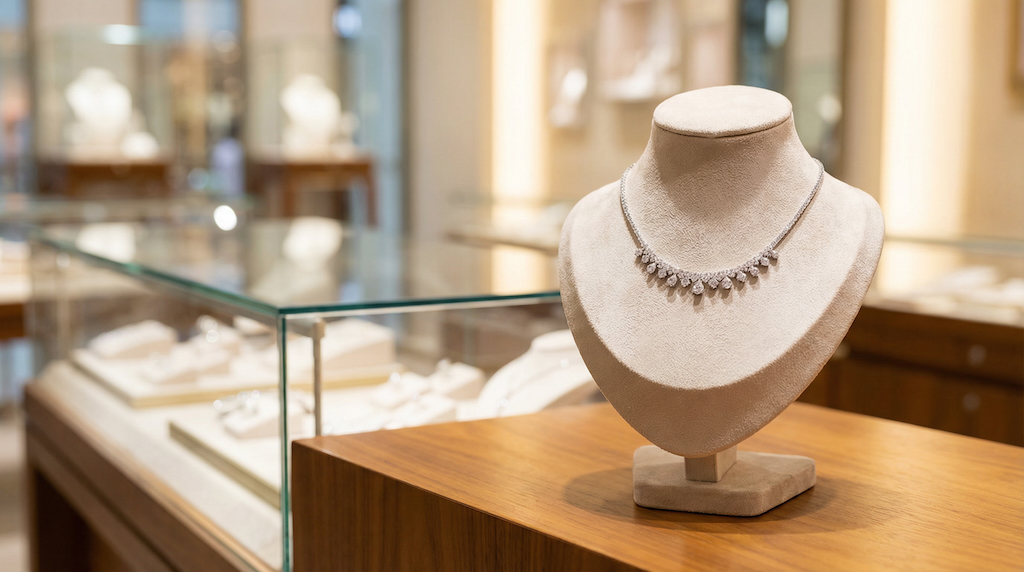
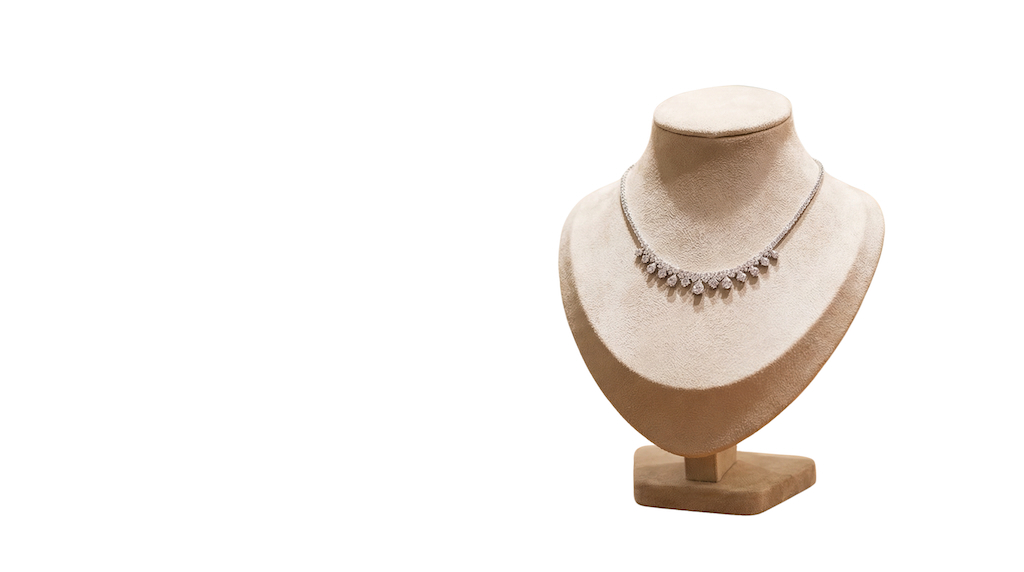
See how a busy background becomes clean and marketplace-ready. The after image shows a bright white background with the product preserved and edges kept crisp.
Pricing and volume
Whether you are editing a handful of listings or a full catalog, choose a plan that matches your volume. You can start free to test quality and upgrade when you need higher-resolution exports or faster throughput.
Related links
Keep going with related resources and the main background removal tool.
FAQs
Does this work on silver/gold reflections?
Yes. Reflections remain, but the surrounding background becomes a clean white so the jewelry looks polished and professional.
How do I avoid halos?
Start with a well-lit photo and avoid strong color casts behind the jewelry. The tool removes the background cleanly, and a quick review at full size helps catch any remaining edge glow.
Best export settings for marketplaces?
Use PNG when you want maximum detail and crisp edges. JPG is smaller and fine for general listings, but check that the compression does not blur fine chains.